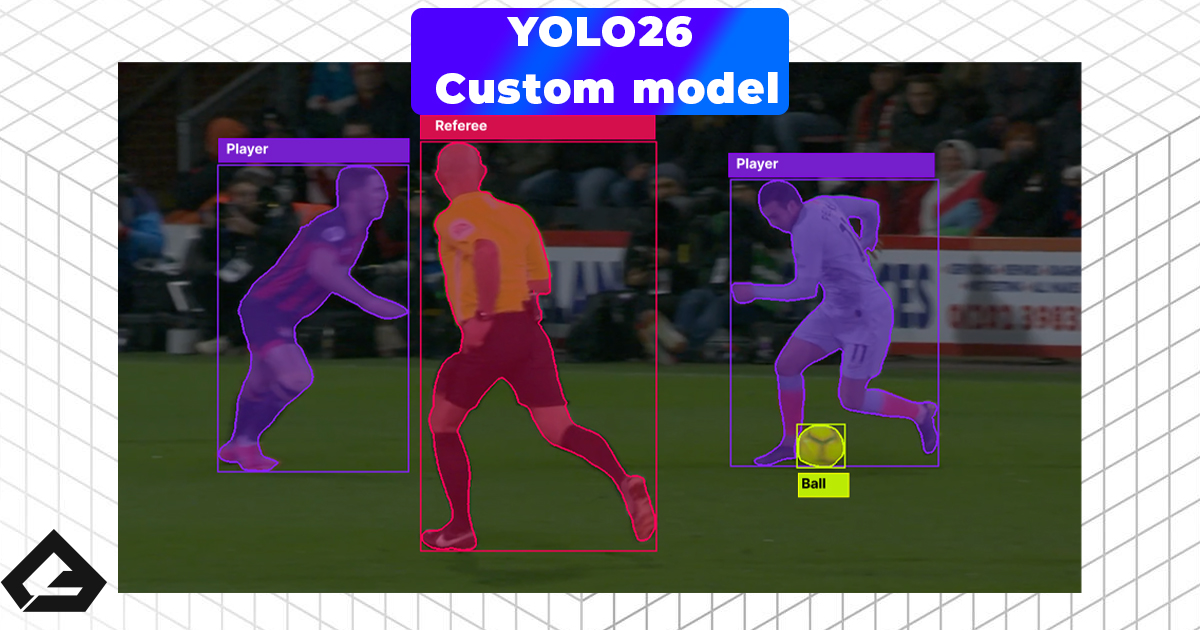
In the previous post, we covered how to build a high-quality dataset by extracting frames from Creative Commons football footage. Now it's time to put that data to work.
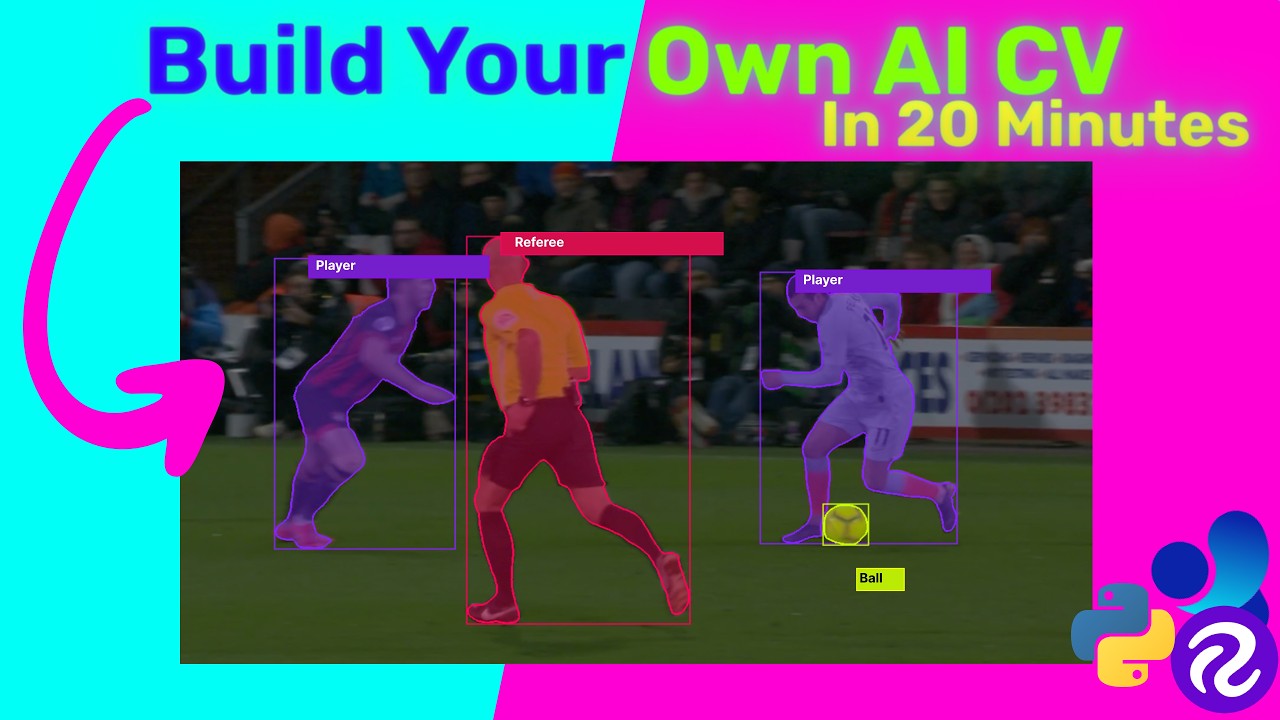
This post walks through the full pipeline: labeling your images, training a YOLOv26 model using Google Colab, and finally running that model locally on your machine. By the end, you'll have a working AI that can detect players, referees, and the ball in real time.
You can follow along with the full video tutorial here:
Step 1: Annotating Your Images with Roboflow
With your curated frames ready, the next step is labeling them — drawing bounding boxes around every object you want the model to detect. Doing this manually for hundreds of images is tedious, which is exactly why we use Roboflow.
Roboflow is a free platform with powerful AI-assisted labeling that dramatically speeds up the annotation process.
Setting Up Your Project
Head to roboflow.com, create a free account, and start a new project. Give it a name (e.g. football-detector), and make sure you select Object Detection as the project type.
Uploading Your Images
Upload your curated frames directly from the dashboard. Once uploaded, click Save and Continue to move into the annotation phase.
Using Auto Label
This is where Roboflow really shines. Instead of drawing boxes manually, use Auto Label with SAM 2. You'll first define your classes — the objects you want to detect. For this project:
football— the ballplayer— any outfield playerreferee— match officials
Once your classes are set, Roboflow runs a model over your images and automatically generates bounding box annotations for each one.
Important: Auto labeling is a massive time-saver, but it isn't perfect. Think of it as a fast intern that needs a proofreader. Go through each image and approve or correct the results. The AI will occasionally miss a small ball or hallucinate a phantom player. Garbage in, garbage out — take the extra few minutes.
A confidence threshold of 40–50% works well for most objects. For small objects like a football, nudge it slightly lower to ensure it gets picked up.
Splitting and Exporting the Dataset
Once all images are approved, add them to your dataset and split them into three subsets:
- Train — 80%
- Validation — 10%
- Test — 10%
Then create a Version to lock in your work, and export it in YOLOv26 format as a .zip file. You'll upload this directly to Google Colab in the next step.
Step 2: Training on Google Colab
Training a computer vision model requires serious GPU power. Most people don't have a high-end AI rig at home — and that's fine. Google Colab gives you free access to a T4 GPU, which is more than enough for a prototype.
Open the training notebook here: 👉 Google Colab Training Notebook
Confirming GPU Access
In Colab, check the top-right corner — it should show your runtime as connected. If not, go to Runtime → Change Runtime Type and select T4 GPU.
Uploading Your Dataset
You have two options:
- Upload directly into the Colab session (simple, but lost on refresh)
- Mount Google Drive and upload there first (recommended for larger datasets)
For a quick prototype, uploading directly is fine. Once uploaded, run the extraction cell to unzip your dataset into the Colab environment automatically.
Installing Requirements
Run the cell to install the Ultralytics package — the core engine used to train, validate, and run YOLO models:
pip install ultralytics
Configuring Your Training Run
There are three key parameters to get right:
| Parameter | What it controls | Recommended value |
|---|---|---|
model |
Model size (nano → xlarge) | yolo26s (small — best speed/accuracy balance) |
epochs |
How many times the model sees your full dataset | 40–100 for a prototype |
imgsz |
Input image resolution | 1280 for small objects like a football |
For small, fast-moving objects like a football, a higher image resolution makes a meaningful difference. 640 is the standard, but 1280 gives the model more detail to work with.
Once configured, run the training cell and grab a coffee — it typically takes around an hour on a free T4.
Retrieving Your Trained Weights
After training completes, check the runs/detect/train/weights/ folder in the sidebar. You'll see two files:
last.pt— the final checkpointbest.pt— the checkpoint that performed best on your validation set
Always use best.pt for inference. Run the test cell to visually confirm the model is detecting objects correctly across your validation images.
Downloading the Model
Run the final cell to zip your weights into custom_model.zip, then right-click it in the file browser and download it to your local machine.
Step 3: Running the Model Locally
With your trained model downloaded, it's time to run it on your own machine. All you need is Python and a code editor — VS Code works perfectly.
Setup
Unzip custom_model.zip and open the folder in VS Code. Create a virtual environment and install dependencies:
python -m venv .venv
source .venv/bin/activate  # Windows: .venv\Scripts\activate
pip install -r requirements.txt
Your requirements.txt should include:
ultralytics
numpy
opencv-python
Writing the Inference Script
Create an index.py file. The script accepts a --source argument so you can point it at an image, a video file, or a live camera without changing the code each time:
import argparse
from ultralytics import YOLO

def main():
    parser = argparse.ArgumentParser(description="Run YOLO inference")
    parser.add_argument("--model", default="weights/best.pt")
    parser.add_argument("--source", default="media/test.png")
    args = parser.parse_args()

    if args.source == "usb":
        args.source = 0  # First connected camera

    model = YOLO(args.model)

    for result in model.predict(
        source=args.source,
        stream=True,
        show=True,
        save=True,
        project="output"
    ):
        pass

if __name__ == "__main__":
    main()
Running Inference
Test against an image:
python index.py --source media/test.png
Test against a video:
python index.py --source media/test.mkv
Run on a live USB camera:
python index.py --source usb
All results are saved to the output/ folder automatically.
What's Next
You now have a fully functional custom computer vision model running locally. That's no small thing.
In the next post, we're going a step further — ditching the plain bounding boxes for proper sports graphics (custom team markers, referee rings, and more), and adding advanced tracking to calculate player running speeds and ball trajectory.
Stay tuned.